

Introduction
Computer hardware basics are important for anyone who uses a computer at home, school, or work. Many people use computers every day without understanding how the physical parts work together. Learning the basics can help you solve simple problems, improve computer performance, and make smarter buying decisions. Whether you are a student, office worker, gamer, or business owner, understanding hardware gives you more confidence when using technology.
Computer hardware basics include learning about the physical components inside and outside a computer. These parts include the processor, memory, motherboard, storage devices, power supply, monitor, keyboard, and many others. Each component has a specific job that helps the computer operate smoothly and efficiently.
In today’s digital world, computers are used for communication, education, entertainment, banking, business, and creative work. Because of this, understanding hardware is becoming a valuable skill. You do not need to be an engineer or technical expert to understand the basics. With simple explanations and practical examples, anyone can learn how computer hardware works.
This guide explains computer hardware basics in simple English. It covers the main components, their functions, benefits, disadvantages, common mistakes, and expert tips. By the end of this article, you will have a clear understanding of how computer hardware works and how to keep your computer running properly.
What Is Computer Hardware Basics?
Computer hardware basics refer to the understanding of the physical parts of a computer system and how they function together. Hardware includes every physical component you can touch, including internal parts and external devices.
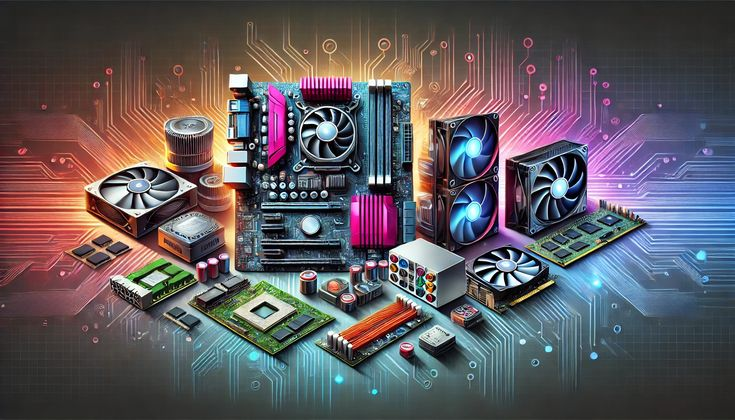
Internal hardware components are located inside the computer case. These include the motherboard, CPU, RAM, storage drive, graphics card, and power supply. External hardware devices include the monitor, keyboard, mouse, printer, speakers, and webcam.
The motherboard acts like the main communication center. The CPU processes instructions and performs calculations. RAM temporarily stores data while programs are running. Storage devices keep files and software permanently. The graphics card handles visual output, especially for gaming and video editing.
Learning computer hardware basics also involves understanding how these components connect and communicate. When all parts work together correctly, the computer performs tasks quickly and efficiently.
For example, when you open a web browser, the CPU processes commands, RAM stores temporary data, and the storage drive retrieves necessary files. Meanwhile, the graphics card sends images to the monitor.
Understanding these functions helps users troubleshoot issues, upgrade systems, and choose the right hardware for different needs.
Why Is Computer Hardware Basics Important?
Understanding computer hardware basics is useful for both personal and professional reasons. It helps users understand how computers function and how to maintain them properly.
First, hardware knowledge helps you solve basic technical problems. If your computer becomes slow, overheats, or fails to start, understanding the hardware can help you identify possible causes.
Second, computer hardware basics can save money. Instead of replacing an entire computer, you may only need to upgrade RAM or storage.
Third, hardware knowledge improves computer performance. Users who understand components can select better upgrades for gaming, office work, or creative tasks.
Another reason hardware basics are important is cybersecurity. Old or damaged hardware can increase security risks and reduce reliability.
Students and professionals also benefit because many jobs require basic computer knowledge. Employers often value workers who understand technology and can solve simple hardware issues independently.
Finally, learning computer hardware basics builds confidence. Technology becomes less confusing when you understand the purpose of each component.
Detailed Step-by-Step Guide
Step 1: Understand the Motherboard
The motherboard is the main circuit board inside the computer. It connects all hardware components and allows communication between them.
Different motherboards support different processors, memory sizes, and expansion cards. Before upgrading hardware, users should check motherboard compatibility.
A motherboard contains slots, ports, and connectors for RAM, storage devices, graphics cards, and power cables.
Step 2: Learn About the CPU
The CPU, or Central Processing Unit, is often called the brain of the computer. It performs calculations and processes instructions.
A faster CPU improves overall computer performance. Popular CPU manufacturers include Intel and AMD.
The CPU speed is measured in gigahertz. More cores and threads also improve multitasking performance.
Step 3: Understand RAM
RAM stands for Random Access Memory. It temporarily stores data while applications are running.
More RAM allows users to run multiple programs smoothly. For example, 8GB RAM is suitable for everyday use, while gamers and video editors often need 16GB or more.
RAM does not permanently save files. Once the computer shuts down, temporary data disappears.
Step 4: Learn About Storage Devices
Storage devices save operating systems, programs, and files permanently.
There are two main storage types:
- HDD (Hard Disk Drive)
- SSD (Solid State Drive)
HDDs are cheaper and provide large storage capacity. SSDs are faster and more reliable.
Most modern computers use SSDs because they improve startup speed and overall performance.
Step 5: Understand the Power Supply
The power supply unit converts electricity from the wall outlet into usable power for the computer.
A reliable power supply protects hardware from electrical damage. Choosing the correct wattage is important for system stability.
Gaming computers often require stronger power supplies because high-performance components consume more electricity.
Step 6: Learn About the Graphics Card
The graphics card processes images and videos.
Basic computers may use integrated graphics built into the CPU. However, gamers and designers often use dedicated graphics cards for better visual performance.
Graphics cards improve gaming quality, video editing, animation, and 3D rendering.
Step 7: Understand Cooling Systems
Computers generate heat during operation. Cooling systems prevent overheating and maintain stable performance.
There are two common cooling methods:
- Air cooling
- Liquid cooling
Fans remove hot air from the system, while thermal paste improves heat transfer between the CPU and cooler.
Step 8: Learn About Input Devices
Input devices allow users to interact with the computer.
Common input devices include:
- Keyboard
- Mouse
- Scanner
- Microphone
- Webcam
Each device sends commands or information to the computer.
Step 9: Understand Output Devices
Output devices display information from the computer.
Examples include:
- Monitor
- Printer
- Speakers
- Projector
High-quality output devices improve user experience for entertainment and professional work.
Step 10: Learn Basic Maintenance

Regular maintenance improves hardware lifespan and performance.
Important maintenance tasks include:
- Cleaning dust from components
- Updating drivers
- Checking cooling fans
- Scanning for hardware problems
- Organizing cables properly
Simple maintenance can prevent expensive repairs.
Benefits of Computer Hardware Basics
Understanding computer hardware basics provides many advantages.
- Helps users troubleshoot basic problems
- Improves computer performance knowledge
- Saves money on repairs and upgrades
- Makes hardware upgrades easier
- Increases confidence when buying computers
- Helps users choose compatible components
- Improves productivity and efficiency
- Supports learning in technology-related careers
- Reduces the risk of hardware damage
- Makes computer maintenance easier
Hardware knowledge also helps users understand software performance. Slow systems are often related to hardware limitations.
Disadvantages and Risks
Although learning computer hardware basics is useful, there are some disadvantages and risks.
- Incorrect installation can damage components
- Static electricity may harm sensitive parts
- Cheap hardware may reduce reliability
- Upgrading incompatible components can cause problems
- Poor cooling can lead to overheating
- Opening a computer without knowledge may void warranties
- Hardware upgrades can become expensive
- Low-quality power supplies may damage systems
Users should always handle components carefully and follow safety guidelines.
Common Mistakes to Avoid
Many beginners make simple mistakes when learning computer hardware basics. Avoiding these problems can protect your computer and improve performance.
One common mistake is ignoring compatibility. Users sometimes buy RAM or processors that do not work with their motherboard.
Another mistake is neglecting cooling. Dust buildup and blocked airflow can cause overheating.
Some users also buy low-quality power supplies to save money. However, poor power supplies can damage expensive components.
Incorrect cable connections are another issue. Loose cables may prevent the computer from starting properly.
Many beginners forget to back up important files before upgrading hardware. Unexpected problems can lead to data loss.
Applying too much thermal paste is another common mistake. Only a small amount is necessary for effective heat transfer.
Some people ignore warning signs such as strange noises, overheating, or sudden shutdowns. Early attention can prevent serious hardware damage.
Finally, many users skip regular cleaning. Dust accumulation reduces cooling efficiency and shortens hardware lifespan.
FAQs
What is the difference between hardware and software?
Hardware refers to physical computer components that users can touch, such as the keyboard, monitor, and motherboard. Software refers to programs and operating systems that run on the hardware.
Which hardware component is most important?
Every component is important because computers rely on all parts working together. However, the CPU and RAM strongly affect overall performance.
How much RAM does a beginner need?
For normal tasks such as browsing, streaming, and office work, 8GB RAM is usually enough. Advanced users may need 16GB or more.
Why is my computer running slowly?
Slow performance may result from low RAM, old storage drives, overheating, viruses, or too many background programs.
Can I upgrade my computer myself?
Yes, many upgrades such as RAM and storage are beginner friendly. However, users should check compatibility before installing new hardware.
What is the lifespan of computer hardware?
Most hardware components last several years. Proper maintenance, cooling, and careful handling can increase lifespan significantly.
Is SSD better than HDD?
SSDs are faster, quieter, and more reliable than HDDs. However, HDDs usually offer more storage at a lower price.
Why does a computer overheat?
Overheating often happens because of dust buildup, poor airflow, broken fans, or heavy system usage.
Expert Tips and Bonus Points
Learning computer hardware basics becomes easier when users follow practical advice from experienced professionals.
Always research hardware before buying new components. Reading product specifications helps avoid compatibility issues.
Use quality power protection devices such as surge protectors. Electrical problems can damage sensitive hardware.
Keep your operating system and drivers updated. Updated drivers improve hardware stability and performance.
Organize cables properly inside the computer case. Better cable management improves airflow and cooling.
Choose reliable hardware brands with good customer support and warranty coverage.
Monitor system temperatures using trusted software tools. High temperatures can reduce hardware lifespan.
When upgrading hardware, focus on components that improve performance the most. For example, replacing an HDD with an SSD often provides noticeable speed improvements.
Clean computer components carefully using compressed air. Avoid using water or rough materials.
Back up important files regularly to protect data from hardware failure.
If you are building a computer for the first time, watch tutorials and read manuals carefully before starting.
Learning computer hardware basics gradually is more effective than trying to memorize everything at once.
Conclusion
Computer hardware basics are essential for anyone who wants to understand how computers work. Learning about the motherboard, CPU, RAM, storage devices, graphics cards, and cooling systems helps users make smarter technology decisions.
Understanding hardware can improve troubleshooting skills, reduce repair costs, and increase computer performance. It also helps users feel more confident when buying, upgrading, or maintaining systems.
Although beginners may feel confused at first, learning computer hardware basics becomes easier with practice and experience. Simple knowledge can prevent many common problems and improve overall computer reliability.
Regular maintenance, proper cooling, and careful component selection are important for keeping computers in good condition. Users who understand hardware can often solve minor issues without professional help.
Technology continues to grow rapidly, and computers remain an important part of everyday life. Because of this, hardware knowledge is becoming more valuable for students, workers, gamers, and business owners.
By learning computer hardware basics, you gain practical skills that support productivity, creativity, and problem solving. Whether you want to build a computer, upgrade performance, or simply understand technology better, hardware knowledge provides a strong foundation for future learning and success.
