

Introduction
Computer shortcut keys are one of the most powerful tools for improving speed and productivity while using a computer. Whether you are a student, office worker, freelancer, or casual user, learning computer shortcut keys can save you a huge amount of time every day. Instead of clicking through menus and searching for options, you can simply press a combination of keys to perform tasks instantly.
In today’s digital world, efficiency matters more than ever. That is why mastering computer shortcut keys has become an essential skill for beginners and intermediate users alike. These shortcuts help you work smarter, not harder, and allow you to complete tasks faster with fewer efforts.
From copying and pasting text to switching between applications and taking screenshots, computer shortcut keys are used everywhere. Once you start using them regularly, you will notice a significant improvement in your workflow speed and overall computer experience.
In this article, you will learn everything about computer shortcut keys, including their importance, benefits, step-by-step usage, common mistakes, expert tips, and frequently asked questions. By the end, you will be able to use computer shortcut keys confidently in your daily tasks.
What is Computer Shortcut Keys?
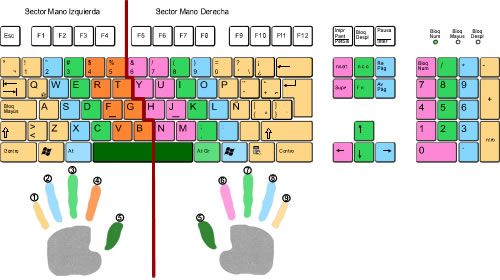
Computer shortcut keys are combinations of two or more keys on a keyboard that perform a specific action quickly without using a mouse. These keys are designed to make computer usage faster and more efficient.
For example, instead of right-clicking and selecting “Copy,” you can simply press Ctrl + C. Similarly, Ctrl + V is used to paste copied content. These simple actions are part of everyday computer shortcut keys used across different operating systems like Windows, macOS, and Linux.
Computer shortcut keys are built into almost every software application, including web browsers, word processors, and design tools. They are especially useful for repetitive tasks, where using a mouse would take more time.
Some shortcut keys are universal, while others are specific to certain programs. Learning computer shortcut keys helps you become more productive and reduces dependency on the mouse, making your workflow smoother and faster.
Why is Computer Shortcut Keys Important?
Computer shortcut keys are important because they improve speed, efficiency, and accuracy while working on a computer. In professional environments, time is valuable, and even a few seconds saved per task can add up to hours over time.
One of the biggest advantages of computer shortcut keys is that they reduce physical effort. Instead of moving your hand back and forth between the keyboard and mouse, you can complete tasks directly using key combinations.
They also help reduce distractions. When you rely on computer shortcut keys, you stay focused on your work instead of navigating menus. This improves concentration and workflow quality.
Another important reason is productivity. People who master computer shortcut keys can complete tasks much faster than those who rely only on mouse operations. This is especially useful for students, office employees, programmers, and content creators.
Overall, computer shortcut keys are essential for anyone who wants to improve their computer skills and work more efficiently in daily life.
Detailed Step-by-Step Guide
Learning Basic Computer Shortcut Keys
Start with the most common computer shortcut keys that are used in almost every application. These include:
- Ctrl + C for copy
- Ctrl + V for paste
- Ctrl + X for cut
- Ctrl + Z for undo
- Ctrl + A for select all
Practice these shortcuts daily until they become natural. These basic computer shortcut keys form the foundation of your keyboard skills.
Using Shortcut Keys in Windows
Windows operating system supports a wide range of computer shortcut keys. Some useful ones include:
- Windows + D to show desktop
- Alt + Tab to switch between apps
- Windows + L to lock screen
- Ctrl + Shift + Esc to open Task Manager
These shortcuts help you navigate Windows faster and manage tasks efficiently.
Using Shortcut Keys in Browsers
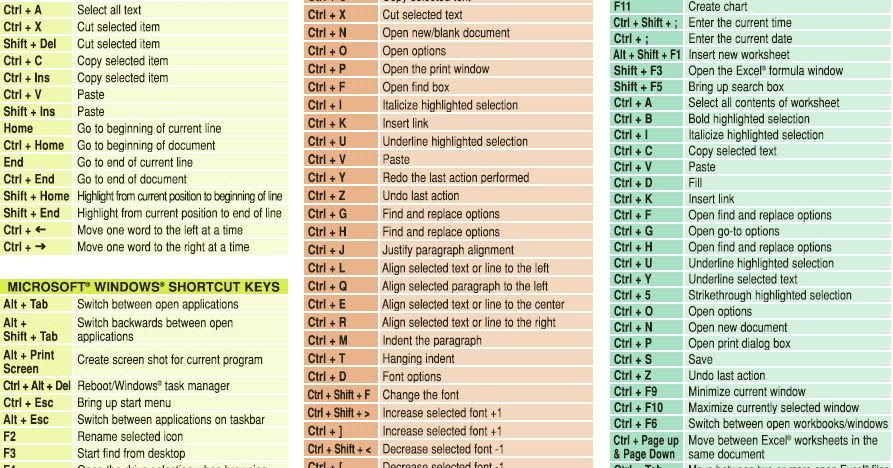
Web browsers also support many computer shortcut keys that improve browsing speed:
- Ctrl + T to open a new tab
- Ctrl + W to close a tab
- Ctrl + Shift + T to reopen closed tab
- Ctrl + Tab to switch tabs
These shortcuts are very helpful for students and researchers who work online frequently.
Practicing Advanced Shortcuts
Once you are comfortable with basic shortcuts, move to advanced computer shortcut keys. These depend on software like Microsoft Word, Excel, Photoshop, and other tools.
For example, in Word:
- Ctrl + B for bold
- Ctrl + I for italic
- Ctrl + U for underline
In Excel:
- Ctrl + Arrow Keys to navigate quickly
- Ctrl + Shift + L for filters
Practicing advanced shortcuts will make you highly efficient.
Benefits of Computer Shortcut Keys
- Saves time during daily computer tasks
- Improves productivity and workflow speed
- Reduces dependency on mouse usage
- Helps in multitasking efficiently
- Enhances professional computer skills
- Makes navigation faster in applications
- Reduces physical strain on hands and wrist
- Increases accuracy in repetitive tasks
Disadvantages / Risks
- Hard to memorize at the beginning
- Confusion between similar shortcut keys
- Not all software uses the same shortcuts
- Over-reliance may reduce mouse skills
- Mistakes can happen if wrong keys are pressed
- Requires regular practice to remember
Common Mistakes to Avoid
Many beginners make mistakes while learning computer shortcut keys. One common mistake is trying to learn too many shortcuts at once. This leads to confusion and poor retention.
Another mistake is not practicing regularly. Without daily use, computer shortcut keys are quickly forgotten. Consistency is very important.
Some users also rely only on shortcuts and ignore mouse usage completely. A balanced approach is better for overall efficiency.
Lastly, beginners often use incorrect key combinations due to lack of understanding. Always double-check before applying new shortcuts.
FAQs
1. What are computer shortcut keys?
Computer shortcut keys are key combinations that perform tasks quickly without using a mouse.
2. Why should I learn computer shortcut keys?
They save time, improve productivity, and make computer usage faster and easier.
3. Are shortcut keys the same for all computers?
No, some are universal while others vary depending on operating systems and software.
4. How long does it take to learn computer shortcut keys?
With regular practice, basic shortcuts can be learned in a few days.
5. Can shortcut keys increase productivity?
Yes, they significantly improve speed and efficiency in daily tasks.
6. Are shortcut keys useful for students?
Yes, students can use them for writing, research, and studying more efficiently.
7. Do professionals use shortcut keys?
Yes, almost all professionals use computer shortcut keys to improve workflow.
Expert Tips & Bonus Points
Experts recommend starting with a small set of computer shortcut keys instead of learning everything at once. Focus on the most commonly used shortcuts first and gradually expand your knowledge.
Another useful tip is to create a cheat sheet and keep it near your workspace. This helps you quickly remember important shortcuts during practice.
Try to force yourself to use computer shortcut keys instead of the mouse whenever possible. With repetition, they will become a natural habit.
You can also customize shortcuts in some software to match your comfort level. This improves speed and usability even further.
Most importantly, practice daily. Even 10 to 15 minutes of practice can significantly improve your memory and efficiency with computer shortcut keys.
Conclusion
Computer shortcut keys are an essential skill for anyone who uses a computer regularly. They are simple, powerful, and highly effective in improving speed and productivity. By learning and practicing computer shortcut keys, you can save time, reduce effort, and complete tasks more efficiently.
From basic commands like copy and paste to advanced shortcuts in professional software, these key combinations play a major role in modern computing. Whether you are a student, employee, or beginner, mastering computer shortcut keys will help you work smarter and faster.
Although it may take some time to memorize them at first, consistent practice makes everything easier. Once you become familiar with computer shortcut keys, you will notice a big improvement in your workflow and confidence.
In today’s fast-moving digital world, learning computer shortcut keys is not just an option but a necessary skill. Start practicing today, and you will see long-term benefits in your daily computer use.
